
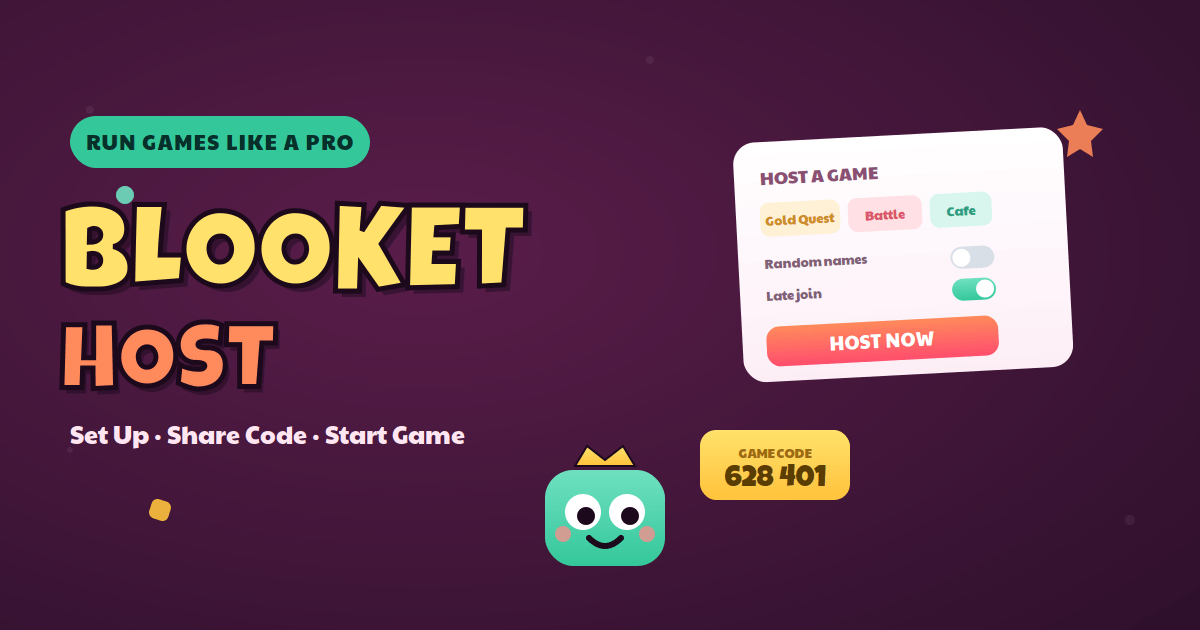
Most hosting problems happen in the first sixty seconds, before a single question appears. A mode that can’t run live, a settings screen clicked past too fast, or half the class staring at the wrong website. Get the setup right and the rest runs itself.
This guide is built for the person running the game. It covers what hosting actually involves, which modes you can run live versus which are solo-only, the exact steps to launch, and the settings screen that quietly decides whether your session works. Then it gets into the parts other guides skip: the lobby trick that keeps early joiners busy, seasonal mode swaps, reading your reports afterward, and fixing problems mid-game without losing the room. Whether you teach, tutor, or run training sessions, you’ll host with confidence by the end.
What Hosting a Blooket Game Really Involves
The host is the person who runs the show. You pick the question set, choose the mode, set the rules, share the code, decide when to start, and review how everyone did afterward.
That’s more control than people expect, and it’s where the skill lives. The game itself is automated, but the host’s choices, especially mode and settings, shape whether the session lands as focused review or descends into noise.
Do You Need a Paid Account to Host?
No, and this matters for budget-conscious teachers. A free account hosts live games in all the standard modes, saves your sets, and gives you post-game reports.
Blooket Plus is optional. It unlocks extra exclusive modes and raises player limits, but for everyday classroom hosting, the free tier is genuinely sufficient. I’d only consider upgrading if you regularly run very large groups or want the bonus modes.
How Many Players Can You Host?
For a normal class, you won’t hit a wall. The free plan comfortably runs typical classroom sessions, and most teachers report smooth performance with thirty to thirty-five students without any trouble.
The hard ceiling on free is 60 players, while Plus raises it to several hundred for assemblies or multi-class events. For very large groups, smoothness depends as much on your device and connection as on the plan, so a wired connection or strong WiFi helps.
Which Modes Can You Actually Host Live?
Here’s a detail that trips up new hosts constantly: not every mode can run as a live game. Some are built for solo or homework play only, and you’ll find them greyed out when you try to host.
The live-hostable modes include Gold Quest, Classic, Tower Defense, Crypto Hack, Battle Royale, Cafe, Factory, Racing, Fishing Frenzy, Monster Brawl, Deceptive Dinos, and Blook Rush. Modes like Tower of Doom, Crazy Kingdom, Study, and Flappy Blook can’t be hosted live; they’re meant for solo practice or homework instead. Knowing this before class saves an awkward scramble at the board.
How to Host a Blooket Game: Step by Step
The full launch takes about two minutes once your set exists. Here’s the clean version, start to finish.
The Core Hosting Steps
Work through these in order and you’ll never fumble the setup.
- Log in and open your dashboard.
- Choose a question set from My Sets, or grab one from Discover and clone it.
- Click Host, then pick a mode that fits your goal.
- Adjust the settings (covered in detail below) before launching.
- Click Host Now, and the platform generates a unique join code.
- Share the code, link, or QR with your players.
- Wait until the lobby fills, then click Start.
That’s the whole flow. The two steps people rush, picking the right mode and tuning the settings, are exactly the two that decide how the session feels.
Sharing the Game Three Ways
Once your code appears, you have three ways to get students in, and the best one depends on your room.
Read the code aloud and display it large for a quick in-person class. Use the QR code when you’ve got young students or want to skip typing entirely. And share the join link in Google Classroom or a chat for online or hybrid sessions, since one tap drops remote students straight in. Pick whichever removes the most friction for your specific group.
Pressing Start at the Right Moment
The single best hosting habit is patience here. Wait until almost everyone is in the lobby before you hit Start.
Launching with two-thirds of the room in leaves latecomers locked out and disengaged before they answer anything. The thirty-second wait is worth it every time. While you wait, the lobby keeps early joiners occupied, which brings us to a trick most hosts never discover.
Host Settings, Reports, and Pro Tips
This is the section that separates a smooth host from a frazzled one. The settings screen looks minor and isn’t.
The Settings That Actually Change Your Game
Before you launch, the host options decide how the session behaves. A few are worth setting deliberately rather than leaving on default.
The random names toggle is the big one. Leave it off and students type their own names, which is what you want, since real names make your after-game report actually useful. Turn it on only when silly or inappropriate nicknames are a risk, because then the system assigns names automatically. There’s also a setting that hides account-creation prompts from students, which keeps younger classes focused, and most hosts leave it enabled.
Beyond names, you can set the question time limit and any penalty time, and toggle late joining and question randomization. Tighten the timer for simple recall so fast finishers don’t drift. Enable randomization for competitive groups so neighbors don’t copy answer positions. These small choices compound into a noticeably better session.
The Lobby Trick: Flappy Blook
Here’s the detail that delights teachers when they find it. While players wait in the lobby for you to press Start, early joiners can play Flappy Blook as a mini-game.
That solves the classic dead-time problem. Instead of restless students chatting while stragglers join, they’re happily occupied, and you get a calm window to take attendance, check connections, or finish setting up. It’s a tiny feature that quietly fixes the most chaotic moment of any session.
Seasonal Mode Swaps to Know About
Don’t be thrown if a familiar mode looks different around a holiday. The platform rotates seasonal versions that play identically but wear a festive coat.
Gold Quest becomes Candy Quest during certain holidays, Monster Brawl gets a Halloween edition in October, and a Santa’s Workshop theme appears from December into early January. These are cosmetic only, so your gameplay and settings stay exactly the same. Worth a heads-up so a themed screen doesn’t catch you off guard mid-lesson.
Hosting Homework Instead of a Live Game
Not every session needs to be live. You can assign a set as homework so students play on their own schedule, which suits flipped classrooms and remote learners.
Choose your set, select the homework option, set a due date and time, and share the join link. Students complete it whenever they can, and the results land in your reports just like a live game. It’s the same content working for you without you running anything in real time.
Reading Your Reports After the Game
After the buzzer is where the real teaching value sits, and it’s the step most hosts skip. Open your reports instead of closing the tab.
The summary shows accuracy by question, accuracy per player, and class averages, and you can export it. That data points straight at what to reteach. A useful real-world example: a teacher who notices that forty percent of the class missed one core question has just had their next mini-lesson written for them. One thing to expect, though, is that the host view shows participation and scores rather than each student’s individual answer choices live during play; the detailed breakdown comes after the game ends.
A Two-Minute Pre-Game Checklist
A little preparation prevents most mid-game stress. Run through this before class.
Review your questions for typos or unclear wording, since a wrong answer key mid-game is hard to fix gracefully. Confirm your device, browser, and internet are solid. And if you’re trying a new mode, test one short game yourself first so nothing surprises you in front of thirty students. Five minutes of prep buys a calm session.
Common Hosting Problems and How to Fix Them
Even prepared hosts hit snags. The good news is that the usual ones have fast, known fixes, so you can solve them without losing the room.
Students Can’t Join or Are on the Wrong Page
This is the most frequent issue, and it’s almost always a wrong-website problem. Students wander to the main dashboard page instead of the join page.
Make sure they go to the join site and enter the code there, and write that address clearly on the board or drop the link in chat. If players genuinely can’t join after you’ve started, your late-join setting is probably off, so either re-enable it or restart the session with it on.
The Lobby Fills Too Slowly
When joining drags and you’re losing momentum, switch the sharing method. Typing a code is the slowest route for a big class.
Display the QR code so phones can scan straight in, or send the direct link for online sessions. Both cut the join time dramatically, and the Flappy Blook lobby game keeps the first arrivals patient while the rest catch up.
The Game Gets Too Loud or Chaotic
Some modes are deliberately high-energy, and with the wrong group that tips into noise. The mode choice is usually the culprit, not the class.
Switch to a calmer mode like Cafe or Classic, shorten the question set so the game doesn’t drag, and set clear behavior expectations before you press Start. Matching the mode’s energy to your room and your goal prevents most of the chaos before it begins.
Inappropriate Nicknames Keep Appearing
If students are testing boundaries with their names, you have two quick levers. Turn on random names before hosting so the system assigns them, removing the temptation entirely.
Alternatively, require a structured format like first name plus last initial and enforce it. That keeps your reports readable while still letting you identify everyone, which random names sacrifice.
Connection Drops Mid-Game
Patchy internet is the one problem partly outside your control, but you can reduce its impact. Ask students to use a stable connection and close extra browser tabs that eat bandwidth.
Be aware of one rule too: if a player closes their browser during a live game, they leave that session permanently and can’t rejoin the same game in progress. So remind students not to refresh or close the tab once play begins.
Read More: Blooket Hacks: The Complete 2026 Safety Guide
Frequently Asked Questions
What does it mean to host on Blooket?
Hosting means you run a live game session. You choose the question set and game mode, adjust the settings, share a join code with players, decide when to start, and review the results afterward. The host is usually the teacher, though students can host in some classroom setups too.
How do I host a Blooket game?
Log in, open your dashboard, and pick or create a question set. Click Host, choose a live-hostable mode, adjust your settings, then click Host Now. A unique code appears, which you share by code, link, or QR. Once players fill the lobby, press Start to begin the game.
Can you host Blooket for free?
Yes. A free account hosts live games in all standard modes, saves your question sets, and provides post-game reports. Blooket Plus is optional and adds exclusive modes plus higher player limits. For most classroom hosting, the free plan is fully functional, so paying isn’t necessary unless you need the extras.
Which Blooket modes can be hosted live?
Live-hostable modes include Gold Quest, Classic, Tower Defense, Crypto Hack, Battle Royale, Cafe, Factory, Racing, Fishing Frenzy, Monster Brawl, Deceptive Dinos, and Blook Rush. Modes such as Tower of Doom, Crazy Kingdom, Study, and Flappy Blook can’t run live; they’re designed for solo practice or homework assignments instead.
How many players can join a hosted game?
The free plan comfortably handles typical classes, with most hosts reporting smooth play for thirty to thirty-five students. The free cap is 60 players, while Blooket Plus raises it to several hundred for larger events. For big groups, your device and internet stability matter as much as the plan itself.
Why can’t my students join my hosted game?
The most common cause is being on the wrong page; students must use the join site, not the main dashboard. Write the address and code clearly. If they can’t join after you started, late joining is likely disabled in your settings, so re-enable it or restart the session.
Should students use real names when I host?
Yes, in most cases. Real names make your after-game report genuinely useful, since you can see exactly who needs help. Only turn on random names if inappropriate nicknames are a risk. A good compromise is requiring a set format, like first name plus last initial, which stays readable and identifiable.
How do I see results after hosting a game?
Open your reports section after the game ends. You’ll see accuracy by question, accuracy per player, and class averages, and you can export the data. This shows which questions the class found hardest, turning your results directly into a plan for what to reteach in your next lesson.
The Bottom Line
Hosting well comes down to three decisions you make before the first question: the right mode, the right settings, and the patience to wait for a full lobby. Nail those and the game runs itself.
So build the habits that matter. Test a new mode before class, leave real names on so your reports are useful, use the QR code or link to fill the lobby fast, and always open the report when the game ends. That last step is what turns a fun session into actual teaching.
Pick one set you’ve used before, host it in a calmer mode like Classic this week, and open the report afterward to find your class’s weakest question. That’s your next lesson, handed to you. For guides on game modes, the dashboard, and winning strategies, browse the rest of the blog.
Disclaimer
This article is an independent guide created for informational purposes only. This blog is not affiliated with, endorsed by, or officially connected to Blooket or Blooket LLC, and all trademarks belong to their respective owners.
Game modes, settings, player limits, and features can change at any time, so always confirm current details on the official site before relying on them. We do not provide or endorse any hacks, cheats, or third-party tools, which may violate Blooket’s terms and put your account at risk. Only host games from the official website. Any action you take based on this guide is at your own discretion.
Check out more awesome content at TheBlooket Blog!